TECH TIPS
Tech Tips
INDEX:
Identity Theft: Email Account Take action NOW to make password reset easier.
Buying a New Printer Things you should know...
Computers: Locked, Hot, Protected? Technical Tips
Back to School Computers
Shopping Tips and Information
Email Hackers
If you get HACKED, act fast!
Oct. 2015:
General Tips and Suggestions
FIVE ways to protect your computer and data!
Beware of Social Networking Games. There may be hidden charges!
Fix or replace your computer? How do you know?
Oct. 2015:
Windows10 and Peripherals You may need to download new Drivers.
Oct. 2015:
Beware of SCAMS: 'Web Loyalty Programs' and 'Microsoft Technician phone calls'
Learn New Computer Programs Don't be afraid to 'Play'
Save Money Create your own Restore Discs
Oct. 2015:
Online Backup and Storage Local vs Offsite
About Searches & Search Engines A few things you may not know....
Oct. 2015:
WSICA offers purchase advice but does not build or sell computers.
The GREEN Factor! Save Energy! Save Money!
Quick General Computer Tips Tips and Tools for easier computing
Saving Money $$$ Just a few quick notes that may help...
Desktop Computer: $5.00 Battery Computer batteries have a lifespan of about 5 years.
What You Write May Haunt You! The illusion of anonymity in today’s internet age can be dangerous.
Vacuum my Computer? Keeping computer clean will help extend the life of the PC.
Printers and the High Cost of Ink Cartridges Change the quality setting to Draft or Fast Draft.
Customer Service Calls Try the obvious first, then be prepared and patient.
Old Photos Preserve Memories with your PC!
Destroy Old Computer Information Deleting files DOES NOT permanently delete information.
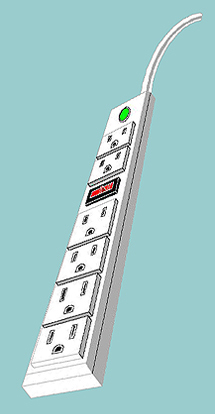
Power Protection for your Computer Surge Protector and UPS or Battery Backup
Identity Theft: Email Account
Take action NOW to make password reset easier.

There are many types of identity theft that can happen today, but a new kind has been occurring lately. Stealing your email account. This occurs most often to people who use email accounts from the major email vendors such as Gmail, Hotmail or Yahoo.
You suddenly find out that someone is sending spam or viruses from your email account to people in your contact list. They do this by accessing your email account, often hacking or stealing your password, and then sending out the emails. If you are fortunate, you can get into your account and change your password. Send out your own email to people in your contact list, apologize and/or warn them to ignore the phony email and move on. Worse, when you try to get into your account or change the password in your account, you can not. The password has already been changed. Now what? Your try to reset your password. If you can great, send out the emails and move on.
To make the password reset easier, you should take some action NOW! Prior to your account being hacked. In the case of Hotmail, go to your Profile, Privacy settings, My Current settings and select Advanced. Then select Mail and account Details. You will see a section for Password Reset information. Fill in this information so it is available if needed.
In the case of Gmail, log into your account and go to My Account and Personal Settings. Then go into the section for Change Password Recovery Options. Fill in this information so it is available if needed.
In the case Yahoo, log into your account. By your login name is a pull down and select Account Info. Then go into the section for Update Password-Reset Info. Fill in this information so it is available if needed.
Smaller email systems may have their own methods. If not the techsupport for them should be able to assist.
As always, prevention is your best defense. Use a strong password and fill out the password reset information, before you need it and before it is too late!
Buying a New Printer
Things you should know...
Computer printers have dropped in price over the last few years. There are also many kinds of printers available. Printers break down into 2 basic categories: Inkjet and Laser. Within each type there subtypes as well. The right printer to get depends upon your needs: Do you need color, how often and what quality, do you print a lot or very little. How much desk space do you have, do you have several computers or just one? The answers to these and several other questions determine the right printer for your needs.
The first decision: do you print a lot (thousands of pages a month) or very few (100 pages a month). If you print a lot start to look at a Laser printer. They cost more than an inkjet but on a per page basis they are much cheaper.
If you are looking at a laser you can get a black and white or a color laser. Color laser printers are more expensive to buy and to own, the per page cost of printing even B/W on a color laser is more then on a B/W laser printer but not nearly as much as an inkjet. Keep in mind also, a color laser printer will not print color photos nearly as nice as an inkjet will.
If you decide to look at an inkjet printer, they are almost entirely color now a days, I suggest looking at an All in One. They are priced almost the same as a plain Inkjet printer but they can make copies and do scans. Many also will act as a fax machine. Keep in mind though, a very cheap inkjet printer, Under $75.00 or so, will generally use much more ink then a $100.00 inkjet printer. Inkjet All in Ones found for $40.00 will generally use much more ink then ones costing $100.00. Since ink is very expensive, I recommend looking at one that costs at least $100.00.
Consider also if the printer is networkable (both Laser and Inkjet). If it is, and you have multiple computers in your house, the printer can be connected to your network and used by all the computers in the house. Although printers connected to a single computer can be shared, that method has several downsides, not the least of which is reliability of the connection. Also, if the printer is connected to a wireless router via an Ethernet cable, it is now available on your wireless network, no need to pay extra for a wireless printer and still get the benefits of wireless printing.
Computers: Locked, Hot, Protected?
Technical Tips
LOCKED COMPUTERS:
I will sometimes hear from a computer user that the system locked up and would not turn off. They generally will tell me that they pulled the power plug or in the case of a Notebook computer, unplugged it and pulled the battery out. Computers can be forced off (as a last resort) by holding the power button for 30 seconds or so. The computer will then turn off. This is only to be done if the system is frozen, as doing this (or even just pulling the power out) can damage the operating system software. However, if the system is truly frozen you have no other option. Prior to doing this, try just be patient. A locked computer will sometimes free itself, so that a proper shutdown can be done after a few minutes of waiting. The definition of a “few” minutes can be as 1 minute or as long as 30 minutes (but is very rare), so patience is needed.
HOT COMPUTERS:
The components inside of a computer generate a lot of heat. Putting a desktop computer inside of a desk cabinet that is almost completely sealed can cause damage to the computer. The inside of a computer case can easily go over 100deg, and 130deg is not unusual. Putting that inside an enclosed desk cabinet can cause it to get much hotter. The rear of the cabinet should be open and when the computer is in use, you may want to consider leaving the cabinet front door open. In the case of a notebook computer it’s even hotter. A “chill pad” which is a small pad that sits under a notebook computer preferable with fans, would be best. They can be purchase for $20-$30 and is much cheaper than a new motherboard for the notebook computer.
PROTECTED COMPUTERS?
I have mentioned before about using a surge protector or Battery UPS for computers, but did you realize both of these have limited life spans? Each time a surge protector absorbs a power surge, its components get a little weaker and protect less. After enough surges, it is not protecting at all, a new computer needs a new surge protector. As for battery UPS units, the internal battery also has a limited lifespan, these should also be replaced when the computer is replaced.
'Back to School' Computers
Shopping Tips and Information

Back to school is fast approaching. Students are preparing to go to college. Many students are starting to look for new computers.
There are several things to keep in mind when you start looking.
First and foremost, remember you generally do get what you pay for. If you try to go for an inexpensive system, you may find yourself outgrowing it too soon. This does not mean that you need to spend a lot of money either for a top of the line gaming system (although the student will often try to convince you otherwise).
A good middle of the line system will usually do. A good place to start is with the school itself. Many colleges have a minimum system recommendation that they will supply you with along with their other new student information packets. This will often list suggestions for software and hardware.
This to keep in mind, stay away from under powered netbooks (very cheap but severely under powered for college). The student will generally require MS Office complete with Word, Excel and PowerPoint. BTW most High Schools and many Junior High Schools are also requiring PowerPoint presentations now. The cheaper notebooks also usually come with either Celeron or Sempron processors, these processors are something to avoid, they are slow and under powered for today’s operating systems.
Extended warranties for Desktop systems are generally not a good value, often they are over priced and the items they cover are relatively inexpensive to replace. However, when it comes to notebook computers the situation requires some research. Notebook computers are expensive to repair and far more delicate then desktop systems. A broken display may run $100’s of dollars to fix. A broken keyboard can easily cost $100 to replace. An inexpensive worthwhile accessory for a notebook computer is a chillpad. This is a simple pad to put under the notebook when in use to allow for better air circulation. Heat is very damaging to a notebook computer. Remember NEVER us a notebook computer on a soft surface such as a bed or pillow. The air vents on the bottom of the computer will be blocked and can cause permanent damage to the computer in a matter of minutes.
Email Hackers
If you get HACKED, act fast!
Even if you do everything right, run a current Internet Security program with firewall and antivirus program, scan your system regularly and use reasonably strong passwords, you can still be hacked.
My own Gmail account was hacked from China. It had nothing to do with my computer directly, it was hacked from Google’s web page. I am telling you this just to show what can occur. All of these security precautions, “reduce” the chances of being hacked, but nothing is foolproof. What is very important is what you do once it occurs and how as well as how fast you react.
First is to notice the signs that your account has been hacked. You suddenly get a batch of undeliverable mail, looking at this mail, you see obvious messages that you did not or would not send out. These are the clearest and most immediate sign of being hacked. You may even receive normal emails from people that you know mentioning unusual emails being received from you, that you realize you had not sent out.
Once you suspect or know you were hacked, here's what to do. The following steps need to be taken as soon as possible.
- Change your email password!
- Make sure your computer’s security program is current and running properly.
- Run an update on your security program to make certain it is running the latest updates.
- Run full system security scans.
- If you are not running Malwarebytes, download it, install and update it. Then run a scan with Malwarebytes.
- Contact your ISP and email provider, let them know what has occurred.
- Email your contacts, to let them know you were hacked and may have received spam claiming to be from you.
REMEMBER - Take action immediately. Do not wait.
General Tips and Suggestions
FIVE ways to protect your computer and data!

Updated October 2015
Make certain that the security program you are using is the current version. Whether it is AVG, Norton Internet Security, McAfee or Kaspersky. If you are not using the latest version of the security program, update immediately. If it is a paid version you are entitled to a free upgrade, if it is a free version, it is still free, get the latest version. This is more than just running update, That only updates the definitions not the actual program.
Keep in mind, if a security program gives a warning about a file or web site, stay away from it. Do not assume that even though it gave you a warning, since it let you access the file or the web site after the warning, that it is virus free. If a security program gave you a warning, there is a reason for the warning.
When was the last time that you backed up your data? If you are not backing up regularly, ask yourself this question, “If I lost everything on my computer today, how upset would I be”? The answer to that question tells you if you need to back up your system. The answer also tells you. If you are doing backups, how often you need to do backups. Remember, the secret to having an external hard drive for backup is, “You have to use it”. An external hard drive for backup costs less than $100, how much is your data worth? Another back up solution is online to the cloud such as Carbonite.
Check your system vents regularly. A computer is a vacuum cleaner without filters. The fan covers should be vacuumed at least once a year if not more often. This is even more important for Notebook computers. A blocked vent will cause the computer to overheat and damage components such as the Power supply, hard drive, CPU, video board and more. Ideally the system should be opened and blown out with compressed air, however - this must be done VERY CAREFULLY or you can damage components inside the computer.
Make certain that your computer is on a surge protector. Surge protectors can be purchased for under $10. A power surge can destroy many components in computer: Power supply, Mother Board, CPU and others. A $10 insurance policy is cheap by comparison. Keep in mind, each time a surge protector is hit with a power surge, even small ones, the surge protector weakens or is disabled. If your surge protector is over 5 years old, it’s time to buy a new one. If your surge protector has a light on it, and the light no longer works, chances are neither does the surge protection components.
Beware of Social Networking Games.
There may be hidden charges!

Computer users spend a large amount of time in various social Networks such as Facebook. These social networking sites contain many Social Networking Games as well such as Farmville and Mafia Wars. Spending time in these games take up a large amount of people’s time. What you may not realize is the danger of these games. One of the larger companies in this industry is Zynga. However, Zynga has used many “tricks” to make money from these games. Although you can earn some virtual money with in the games, the larger money is obtained by getting others interested in the game or using a credit card to purchase the virtual money. This process can become very expensive.
Other ways to earn virtual money is by filling out a brief survey. At the end of the survey a PIN code is sent to your Cell phone to put into the game. However, once the PIN is entered you may find yourself subscribed to a monthly bill for “buyers advantage” or some other worthless program. In other cases accepting a gift or invitation with in a Zynga game has been known to wipe out your virtual bank account, with no recourse.
If you are going to play these games, leave the personal information and the credit cards in the real world.
To replace your computer or not to replace your computer,
that is the question.

I often receive telephone calls from people who are not sure if they should fix their computer or replace it. This decision depends on many factors. Many experts now say a computer is ready to be replaced after 4 years. Yet, many people are using perfectly good computers that are doing everything they need and are 7 or more years old. Like old cars, computers may have no ‘book’ value but are of good value to the user.
The decision for replacing a computer depends on many factors. What are you doing on it or what programs are you running on it? Does it need work now or is it functioning Ok? How old is the computer? How powerful is the computer (CPU, RAM, Hard drive size, etc)? If the computer needs work, is it extensive (translated expensive) or minor (cheap)?
These factors and many more should go into the decision of whether a computer should be fixed or replaced. One example, a severe virus or other operating system corruption causes the computer to require a full reload. You are not comfortable doing it yourself so you need a technician to do it. The computer is 7-8 years old, this usually would be a replacement situation. On the other hand, the computer is 2 years old, this usually means repair it. 3 to 4 year old computers, the repair or replace decision is a little tougher. How powerful is the system comes more into play. Prior to spending money on an older (over 4 years old) computer, keep in mind, regardless of the repair, reload, replace parts, etc, the remaining components are still 4 years old.
In most cases it is not worth “upgrading” a mother board on an older system, regardless of what you are told, it will not be “much better then new”. The remaining parts are still old. Inexpensive upgrades such as memory may be worthwhile, but entire mother boards or a new operating system, rarely are on older systems. Save the repair money on those and put it toward a new system.
Windows10 and Peripherals
You may need to download new Drivers...
Updated October 2015
Many people have purchased or received as gifts new computers. These new computers usually are running Microsoft’s newest Operating System, Windows 10. Some of you also received new peripherals with the new computers, such as printers or digital cameras. Since Windows 10 is so new, the peripherals may not contain drivers that are Windows 10 compatible. If the install disc that the equipment comes with does not specifically say, it has Windows 10 drivers, assume it does not! In those cases, before connecting the device to your computer, go to the manufacturer’s web site and download the proper drivers. Just because the device is brand new, does not mean the software in the box contains Windows 10 drivers.
If you are moving old peripherals to a Windows 10 computer, do not try to use your original install discs. Once more, go to the manufacturer’s web site and look for the current Windows 10 drivers to download.
Using old drivers with Windows 10 may cause several problems. These range from intermittent communications to no communications at all with the new equipment. When downloading the drivers, make certain to download the proper drivers. They need to be for the proper Operating System and the proper device model number.
Taking these precautions will save many hours of troubleshooting either by yourself or with technical support. Remember if you do need to call the manufacturer’s technical support helpline, make sure you have as much information about the equipment and what you have done to resolve the problem prior to calling. Make sure you have plenty of time (hold times are often long) and get comfortable and relaxed before calling (a glass of wine helps).
SCAM Warnings
Updated October 2015
Watch out for “Web Loyalty Programs”
The word for online shopping is caution. An ongoing scam that is occurring and getting worse is called “Web Loyalty Programs”. The way this works is as follows: you make a purchase from your favorite online store, at check out a pop up window occurs asking if you want a coupon sent to your email box in the future. Just supply your email address. What occurs is this, the coupon company charges your credit card each month for a Web Loyalty Program. Wait, you did not give them your credit card number only your email address, how could that be? The store supplies the company with your credit card number, they get a cut of the profits, and you, (oops forgot the small print that may or may not be there) get the bill. This scam is making these companies Millions $. The stores make hundreds of thousands a year or more, and the consumer has the mess to cleanup. Do Not Accept these offers. Check your credit card statements monthly.
If you think this is only small companies, you’re wrong. The culprits have taken in over a Billion dollars. Major web sites participate in this.
Beware of a phone call from someone claiming to be a 'Microsoft Technician'.
This happened to one of my customers recently. Fortunately he stopped before they accessed his system. I have researched this, it is real, it is happening and people are losing time, money and getting computer viruses because of this.
Scam Alert: There is a scam going on in our area. One of my customers called me with this. Fortunately he stopped short of doing any harm or giving out any vital information.
A telephone call would be received, a person on the phone claiming to be a “Microsoft technician” would ask if you are online and if so if your computer is performing slowly. They then tell you, if the computer is off to turn it on, otherwise they may claim that your computer is infected. They then instruct you to go to the device manager to view the Event Viewer to verify that if there were more than 5 or 6 Errors in the log, it was a positive infection. This part may vary, but the results usually are the same, they may have you go to a website and type in a work order code and advise you that a Microsoft technician was going to fix and rid you of the virus by remote. They may take control of your system remotely, changing personal settings and disabling protection settings. At this point they will offer other lies to keep control of your system. Once done, they have infected your computer and possibly stolen personal information.
Microsoft will never call you unsolicited to “help”. This scam is becoming more wide spread. They either infect your computer or will steal vital personal information that opens you up to identity theft. If you receive such a telephone call, HANG UP! Give out no personal information. Do not go to their web site even just “to check”. By the time you realize that it is a phony web site, it may be too late.
If you have any questions about this, please call me and I will try to answers them for you.
Contact Jeffrey Blank by phone 813-973-4507 or
Email.
Learn New Computer Programs
Don't be afraid to 'Play'
Computers are one of those devices that the best way to learn is to “Play”. There are thousands of books to teach each of the various versions of Windows and Microsoft Office, but in the end, the only way to really learn them is to “Play”. Books are fine to get started and/or answer questions that have you totally stumped, but in the end, trial and error works best. For safety, stay away from Delete or Uninstall for software , but to feel comfortable with programs like Word or Excel, open the program, and start typing. Look thru the menus to see what each function does.
If you really want a book to start out with, I often recommend the For Dummies series. They give a basic understanding with a little humor mixed in. However, just reading the book will never work. You need to do! Hands On! Work with the software to get comfortable. For a little more advanced series of books, you already understand the basics but want some harder answers, I like the Missing Manual series. They give answers to all but the most advanced questions with out spending a lot of time on basics.
These methods hold true for many programs. Whether it’s an advance program or a simple program. The basic methodology is similar. I recommend the same series of books, and a hands on learning approach. In the end, computers are a hands on tool.
SAVE MONEY
Create your own Restore Discs

When you get a new computer they often do not come with restore discs. These are discs, usually DVDs, containing a copy of the Operating System, Device Drivers and any preinstalled software that is on the system when purchased. These are used to reload the computer if something goes wrong. Often the store that you purchased the computer in will "as a favor" offer to create these for you "at a nominal" price. This price varies from $30-$90. They then may also tell you that if you do not accept this offer you would have to buy them from the manufacturer for $100 or more. This is a waste of good money and simply untrue.
First, if the system does not include a set of restore disks, and some do even though the store may say it does not, you can create them yourself. The system will include a feature/program usually called "Create Restore Discs". You will need 1-4 Writable DVDs. They cost $1-$2 a piece. You launch the program, and follow the screen instructions. It may take an hour or 2 to create the discs, but you do not need to sit at the computer during the process. This is the other statement the store will use if you tell them that you can create the restore discs yourself, that it will take hours. What they neglect to say is, you just run the program and check on it every now and then to change the disc, you do not need to sit and watch the computer during the process. Just check on it once in a while to change the disc when needed.
This is a money maker for the store. They charge for a simple process that you can easily do yourself. Also the discs are generally available from the computer manufacturer for $30 or so, not $100.
Computers cost enough, why pay extra for something you can easily handle yourself?
Online Backup and Storage
Local vs Offsite
Updated October 2015
 File backup is available in many ways.
Locally you can have backup drives, jump drives, CD’s and DVD’s. Many people prefer offsite backup. This way if disaster strikes, a copy of your files, documents or pictures exist elsewhere. Many companies have popped up recently offering offsite backup for little or no money.
- Dell computers and Norton Internet Security often come with of free online storage.
- Pictures are often stored online for free via HP, DropBox, Microsoft, Picasa and many more.
HOWEVER... In some cases the free online storage is for 1 year and then the company wants you to pay an annual or monthly fee to continue its use or they will shut down your account. People often store the pictures online with no local copy. Even worse, if the email address that you have on file is no longer valid, you may not have received the account closing notice. For this reason it is very important to keep watch on these accounts. Access them monthly to see that they are still valid and still have your current information. Also, keep a copy locally. This way if the account is closed, you have your own copy.
Be Aware! Online data backup companies have other dangers. Many such companies come and go quickly. Your data is backed up, you have paid for a year or more of storage, but they go out of business. Your backup data is lost. Hopefully, it was just that - backup. You still have the original. However, what happens to that data? Does the company sell the hard drives with your data on them to other companies? If there systems were leased, did the equipment return to the manufacturer (with the data still on it)? In most cases the data was encrypted, so no one can access it.
Make sure if you choose the online backup method, they use encryption and are a reliable company. Also access your account at least once a month to make sure your email address is current and they do not have any notices posted on their web site.
About Searches & Search Engines
A few things you may not know....
Updated October 2015

Besides the major internet search engines such as Google.com, Yahoo.com or Bing.com there are many smaller or specialty search engines available. All search engines are not created equal. If you search the same topic on each search engine, you will get different results. This fact is handy to know if you are having a problem finding a particular answer. If you cannot find an answer by searching one search engine, then try one or more of the others.
More important is the wording that you put into the search parameters. Changing the order of the words or slightly changing a phrase can bring you completely different results. For example, ‘computer repair in Tampa, FL”, “computer repair in Tampa Florida” and “Tampa Florida computer repair” can all bring you slightly different results for the same services. In many cases the differences can be much larger. Searching for any one or more phrases in different search engines will also bring you different results.
The same is true when searching within a particular web site. If you are searching for a product on Amazon.com, and you put in a description, slight variations of the wording may bring up different results. This can be helpful to try. In the case of Amazon.com (or similar shopping web sites) by searching for variations of a name or description, you may find the same product with different prices. A few minutes of extra searching may save you money.
If you search with in a search engine for “Specialty Search Engines”, you will bring up lists of sites that list search engines. The World Wide Web is truly an Intertwined Web.
WSICA offers purchase advice
but does not build or sell computers.
Updated October 2015
One of the questions I am asked is do I sell computers? Can I build a custom system for someone?
I do not do this and let me explain why. A custom system would be made of various components purchased on the internet or locally. The problem with this method is, “Driver conflicts”. Drivers are the software that Windows requires to know how to use a given component. When you install a given piece of hardware, often you are required to install software that is usually supplied on a DVD or CD. This software contains the Windows driver and sometimes some other software to utilize the device. In theory the drivers should all get along and work flawlessly together with other drivers under Windows. In practice the driver may conflict with other drivers from other hardware that were previously installed on your system.
Systems that are prebuilt from companies such as Dell and HP have gone thru testing for these conflicts. If you add equipment to these systems, you should be adding it one item at a time. If there is a problem, you remove that piece of hardware and uninstall the software and/or perform a system restore to a point prior to that installation. In most cases this will correct any problems that were caused by the software or hardware.
When you custom build a system, many pieces of software and hardware are brought together at once, troubleshooting a conflict becomes much harder.
One other problem is cost. A full retail version of Windows can cost over $200, while a prebuilt computer can be purchased for $500. The reason for this is, companies such as Dell and HP get large volume discounts from Microsoft, discounts for system builders (which even for a single copy can lower the price to $100) and due to volumes of systems they sell, the research for problem drivers or software conflicts is spread out by the shear volume of sales.
All of these reasons add up to, I prefer to consult and advise about what computer to purchase. It is advantageous to you also, let the other person struggle with the unknown problems that may occur.

The GREEN Factor!
People who buy a new computer sometimes ask, couldn't I keep my old monitor? In addition to the quality of the picture there is a Green Factor.
A typical 19" CRT uses 110W to run. A 19" LCD uses 50W to run. So 60W savings x365 days a year x 8 hours a day = 175,200 Wh = 175,2 kWh a year saved.
Add to this the fact that the CRT puts out more heat, so in the summer thats more AC to cool and you have additional savings. Older CRT's can be even less efficient, plus the new LCD's use less power then the CRT's even if both are in sleep mode.
Upgrading to an LCD is GREENER. BTW the same can be said for the older Television upgrading to a Flat Screen TV.

Quick General Computer Tips
Tips and Tools for easier computing...
Most Windows Programs that have a list of items, the items can be multi selected. If you press on the 1st item in the list that you wish to select. You then can either press and hold the [ctrl] key and while holding the [ctrl] key press the other items 1 at a time that you want to select. The alternative is, once you select the 1st item in the list, go to the last item in the list that you wish to select, press and hold the [shift] key and select the last item. The result is that the 1st , last and all items in between will be selected.
If you are not sure how to do something in a computer program (copy, paste, insert, etc.) highlight the necessary word or phrase and [Right] click the mouse, a mini menu will pop up that may have your solution.
Within Internet Explorer, press and hold the [ctrl] key and press the [+] key to enlarge the web page. Press the [–] key to shrink the page. Closing and reopening the page will bring the page back to its default.
Pressing the Space bar on a web page will scroll the screen one page at a time.
Double click on a word in Microsoft Word, and the entire word will be selected, rather then dragging the mouse across the word. Triple click on the word and the entire sentence will be selected.
Google has many hidden tools. It has a foreign language translator, measurement conversion tool, English dictionary as well as a spelling dictionary. Just type into Google’s search bar what you are looking for either and item or a function of some type (Translate from English to French) and Google will help.
These are just a few quick tips. To some people they may seem obvious, to others they may be a reminder and to others they may be something they never knew.

$$$ Saving Money $$$
Just a few quick notes that may help...
- There are many web sites with discount codes for online ordering companies. When you are getting ready to make an online purchase a few minutes of web searching may bring up a usable code to save a few dollars or get free shipping on a product.
- Magazine renewals is another area to save money. I recently received mail for 3 magazine renewals. One of them still had over a year on the subscription, this is common, check the subscription expiration dates before renewing. In the case of the other 2, both mailings claimed to be "The best price available". A quick visit to there own web sites showed cheaper prices posted there for renewals then the mailings from the magazines. Although there are many magazine subscription scams, this one seems to be perpetrated by the magazines them selves. Do not assume the renewals they send you are there best offers, do your research. By renewing at there web sites rather then thru the mailings, I was able to save money.
- One of my previous tips mentioned saving money on printing. Just a reminder, if you print a lot of documents, a good Black and White laser printer can be purchased for under $100, with the high price of inkjet refills, this could save you a lot of money. The other part of that tip, mentions lowering the default print quality for your ink jet printing, saving ink. When good quality prints are needed simply change the properties for that print only.
- BACKUP, BACKUP, BACKUP! An inexpensive and simple backup solution is an external hard drive. It works like a giant floppy. Just copy your documents to it. If you are not sure if you need a backup solution ask yourself, "If I lost everything on my computer today, would I be upset" ? If the answer is yes, you need to backup your data.
Desktop Computer: $5.00 Battery
Computers have batteries. People know that laptops have a battery that is charged and allows you to use it while not plugged into the wall.
Notebook and Desktop computers have another battery called a Bios Battery. In most computers it is a "Button" battery.
The button battery gets its name from its shape and size. It is a small round battery about the size of a large button or a thick quarter. In most cases the battery is either a CR2032 or CR2525. This battery is responsible for letting your computer remember the bios settings. The bios, which stands for Basic Input/Output System or Built In Operating System, keeps track of the time, date, power on settings, basic device settings and many other items that most computer users do not need to change on a regular basis.
The batteries have a lifespan of about 5 years. Once the voltage output of the battery falls too low, the system will give a warning when booting. The warning may vary from saying the battery has failed to just resetting the clock to some erroneous date and time. The operator will usually have to press a key such as F1 to finish booting and you will notice that the clock shows 12:00 or their about and a date many years old. In a worse case scenario the computer will not boot because it does not know something about a critical component such as the hard drive, until you tell it or change a bios setting.
In the case of a desktop computer the battery is mounted in a simple holder on the computer mother board and can be changed quickly, the bios settings reset and the system is up and running. In the case of a Notebook computer the situation is often more complicated. First the battery is often not easily reached. Secondly, even once reached the battery it may have wires attached to it rather then being in a holder. This makes the battery a specialty battery and harder to find. Remember the computer is usually 5 years old or older, so the company that manufactured it may be out of business or just unable to supply the battery. Fortunately the batteries are still usually either CR2032 or CR2525. There are suppliers around with those batteries with wires on them and even if the connector is different, wires from the old battery can be spliced into the wires of the new battery.
This said, keep in mind it is said that the useful life of a computer is 4-5 years due to advancement of computing power, memory requirements of software, advancement of Operating Systems and changes of other software. It may pay to just replace the computer if it is a notebook system. However, in a desktop system, the battery is easy to replace and generally available for under $5.00.

What you write
may come back to HAUNT you!
The illusion of anonymity in today’s computer and internet age can be dangerous. People create logins to forums, blogs and newsgroups often using what they believe to be are anonymous pseudo names.
What they do not realize is there real identity can be found or figured out often thru less then obvious means. One way is they forget that when they created the original login they had to give there real email address which can often be traced back to them. If they didn’t give that information to one site, they may have used the same pseudo name on another site that they did use there real email address on. People can connect the two if they go on both sites. Hackers can find ways into sites unsecured lists. Homeland security can find things out thru their own means.
If you believe you are anonymous you may be apt to say things you would not have otherwise posted. These statements can comeback to haunt you. Internet postings have a very very long lifespan. Google keeps files for years. Postings on social networking sites such as Facebook or Youtube can haunt you later in life. Companies are now researching potential employee’s files on social networking sites to find out information about them. Anonymous or otherwise. There are cases everyday when postings made while in High School or College have cost people jobs because they simply made a “mistake”.
This problem will get worse as the computer generation matures and moves into the work force.
Vacuum my Computer?

Anyone who has looked inside of a computer that has been used for any length of time will realize how dusty and dirty they can get. A computer with all of its cooling fans and blowers acts as a vacuum cleaner without a filter. No matter how clean you keep your house or office, computers still get dirty inside. If you have pets or use a wood stove or fireplace, its even worse.
The reason the computer has all of these fans and blowers is obviously heat. Whatever the temperature is outside of the computer, it's much hotter inside. The power supply, cpu and video board all put out tremendous heat. In fact, keeping the inside of the computer cool is actually one of the main limiting factors to why today's computers are not smaller and faster. A notebook computer has intake vents for cool air, if used on a soft surface (pillow or lap) the fabric tends to block the intake vents and can cause permanent damage to the laptop.
One simple maintenance tip is to vacuum the outside of any computer system once or twice a year. A laptop should be vacuumed and "blown out" this often as well. A can of compressed air can be purchased from an office supply store and would do the trick. Turn off the laptop, unplug it and remove the battery. Then use the canned air, being careful to keep the can upright at all times. Using a household air compressor instead of canned air could be a problem. Air compressors have condensation and you can be putting water into the computer if you do not use a proper dryer on the air line.
A desktop system should have the outside vacuumed. If you are comfortable with it, you can remove the cover and "Gently" vacuum it out as well as blow it out. MAKE CERTAIN IT IS UNPLUGGED WHEN DOING THIS! Also be careful about atatic electricity, that can do permanent damage to the computer.
Keeping the computer systems clean for proper airflow will help extend the life of the computer and their components by many years.
Printers... and the High Cost of Ink Cartridges

The myth of the paperless office. Years ago everyone was led to believe that computers would create a paperless office. We have since learned that this never occurred. In fact we seem to be printing more then ever. Computers seem to have caused more paper rather then less.
In a previous tip, I gave instructions about creating PDF's. This helps reduce the need to print somewhat, but we still print more then ever. Those of us who have gone shopping for inks for the common inkjet printer, realize just how expensive this process really is.
There are several ways, besides using PDFs, that we can save on ink. If you select Printer and Faxes in the Control Panel, then select the properties for your printer, for ink jet printers, you will see the default print quality listed. Most manufacturers set this to Good or Normal quality, yet the majority of what we print is only for ourselves or to show someone in our family for a quick read and then file it or toss it out. Change the quality setting to Draft or Fast Draft. In most cases, particularly with newer printers, this quality, although a little light, will be sufficient for our use. If you need a better quality document, when you go to print it, go into properties within the application you are using and change the quality to Normal. It will print that document only in Normal mode. Other documents will print in the Draft or Fast Draft mode. Doing this will save about 1/3 to ˝ the ink. Financially that adds up and it saves time printing as well.
Another option is if you print a lot of documents, a Black & White laser printer can be purchased for about $100, less if you catch a good sale. Buy one and make that your default printer. Save the ink jet for when you need color prints. Per page, a laser printer is much cheaper then an inkjet printer.
That said, keep the following in mind, very cheap inkjet printers, $30-$40, that you often see at Wal-Mart and such, often cost more in the long run then a $100 inkjet printer. Those cheap inkjet printers use a lot more ink per page then the slightly more expensive ones. In addition, for $100 to $150 you can get an all in one inkjet printer which can be used as a copier as well. This may come in handy having around the house.

Customer Service Calls
Most of us have had to call customer service for a device at one time or another. We generally get someone with a heavy accent that seems to ask us basic questions, usually after being on hold for some extended length of time.
Let me give you some hints to make the call easier (or at least more bearable).
First, get comfortable! Chances are you will be on hold for a while before you get someone on the line.
Try to avoid calling on Mondays or Fridays. The worst time to call is a Monday morning, that's when they are busiest. If a call center is open 24 hours, and many are, I like to call late in the day. Late night actually works well, because they seem to be less busy – this may not always work, but it's worth a try.
Make certain that the item you are calling about is on if possible and you can get to it easily. This way when they ask you to do something you can easily try it. If the company has an online chat help system, this is easier sometimes, since you do not have to worry about a heavy accent. Of course if the computer is down this method will not work, but for some peripherals you can use this method.
Try the obvious before calling. Is the plug in, did you reseat the cable and so on. When you do get a person either on the telephone or on chat, tell them what the problem is and what you have already done. Saying, "I tried everything already" tells them nothing and forces them to start with the basics, usually aggravating you further and wasting your time. By telling them upfront what you have done, although due to their script they may ask the same thing again, they will tend to "believe you" when you say you did it already. If you wait until they ask you to try something before telling them it was already tried, the customer service person often will not believe you and you wind up having to do the same items again.
If you do have trouble understanding the person on the telephone, ask for someone else or just call back.
Most importantly – be patient! Yelling and screaming often gets you no where and just raises your blood pressure. Save the yelling for the 2nd or 3rd call, give the person a chance. It may take a while, but they often really do help fix things. Be prepared – you will be on the telephone for a while, relax, get comfortable, get a drink, whatever it takes.
Preserve Memories with your PC!

Many of us have old photos and old slides. You may have tons of slide trays, photo albums or just boxes of loose photos or slides. Over time these memories deteriorate. In other cases they are buried in attics and basements, never to be seen.
First and foremost, these pictures can be scanned into your computer in seconds at very little expense. Before these irreplaceable memories deteriorate beyond recognition, you should scan them into your computer. If they are printed pictures, any All in One printer that comes with a built in flat bed scanner can scan them. If they have started to deteriorate, often simple retouching - a lot of it automated - can restore the photos to their original or near original beauty. In some cases they may look better then the original. Now they are safely stored on your system.
In the case of slides or negatives, there are many flat bed scanners (even some All in One Printers) that can scan these. Once more, they can be retouched if repair is needed.
These photos can even be placed on DVDs so that you can watch them as a slide show on your television from your DVD player. Do not forget to back these pictures up now that you have gone thru the trouble of scanning them, either to a DVD or an external hard drive. For added security, you may want to make extra copies and send them to a relative. This way you not only share the memories but are also maintaining an offsite backup in case of a disaster.
|